KitchenSlate Sign in
KitchenSlate · booking and members for shared kitchens

Your kitchen sells hours.
Run every one of them from one place.

KitchenSlate runs a shared commercial kitchen — bookings and equipment, members and their paperwork, onboarding and agreements, billing, tours and your website — in one app your members can use from their phone. Every screen below is the real app, running a made-up kitchen called Sample Kitchen Co.

Live product, demo data — every business, document and figure on this page is made up.
01

Bookings — by the hour, with the equipment that goes with them

Members book time from a week calendar and say what they'll use — a range, an oven, a stock pot. Everyone can see who else is in and which equipment two businesses have both planned on, so a clash is obvious before the day, not on it. Closures, deep cleans, inspections and out-of-service equipment go on the same calendar, and nobody can book into them.
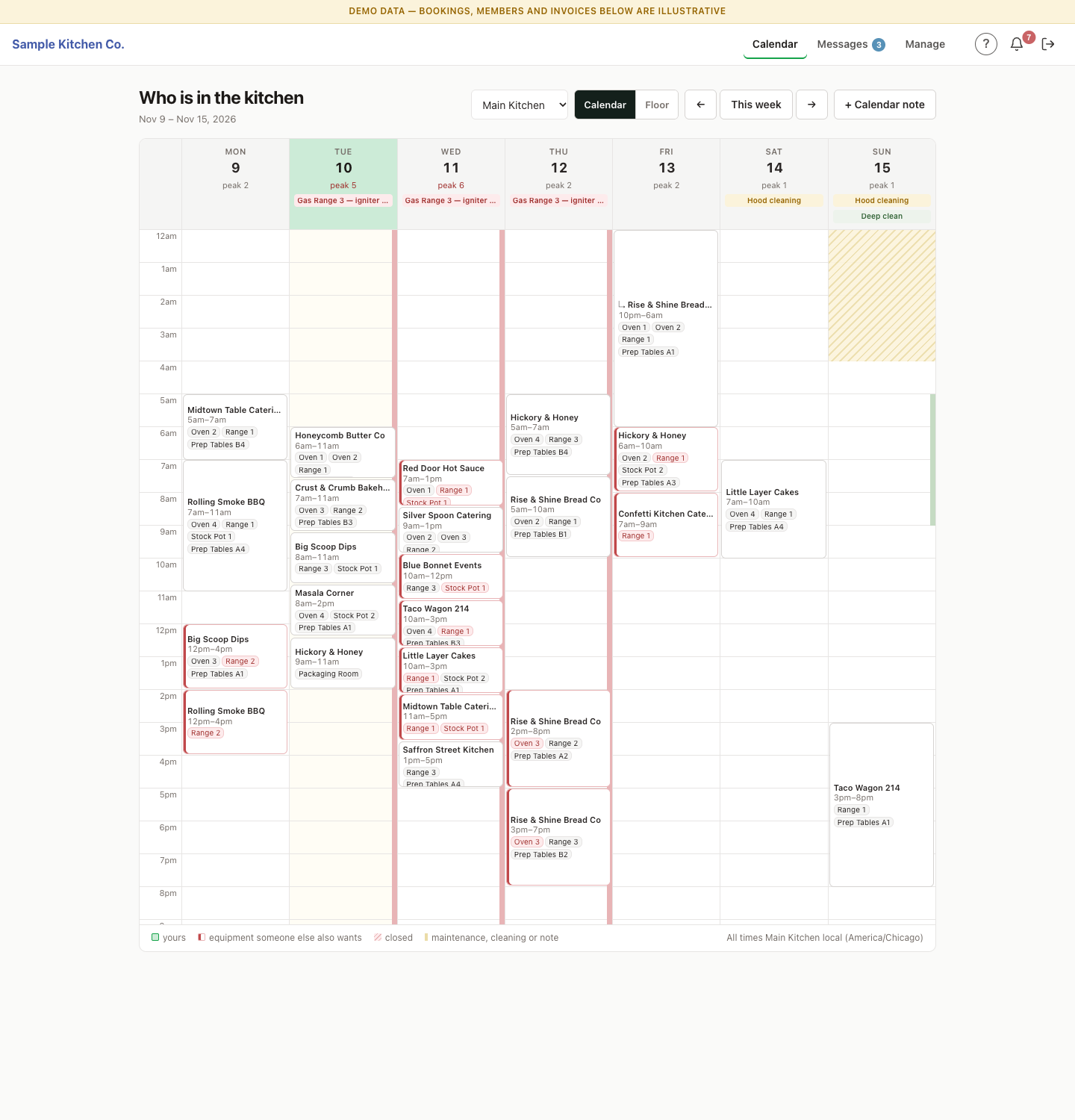
The week calendar for one kitchen: each booking shows the business, its hours and the equipment it plans to use; red chips mark equipment two businesses both want, a hatched block marks a closure, and notes across the top flag an out-of-service range and a hood cleaning.
A week in the main kitchen: who's booked, what they'll use, and red where two businesses want the same range.
  • Hourly bookings across every location
  • Equipment shared or reserved — your call, by category
  • Or rent a kitchen to one client at a time
  • Closures and out-of-service equipment block new bookings
02

The floor plan — see the room, not just the time slot

Pick a time and see the kitchen as it'll be: which stations are in use and by whom, which are free, which are out of service. Lay out each location once by dragging equipment into place.
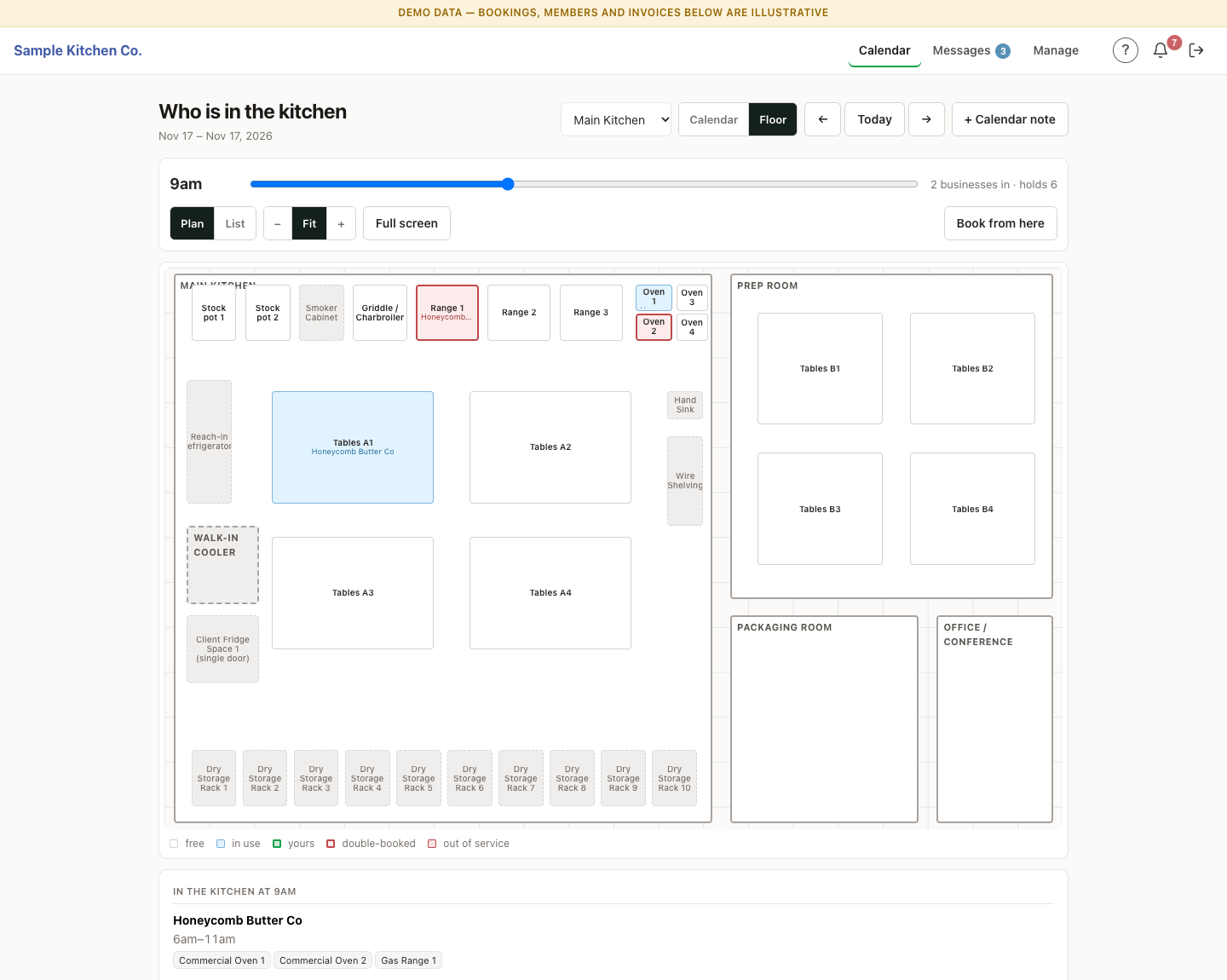
The floor plan at 9am: ranges, ovens, stock pots and prep tables drawn where they stand, those in use shaded with the business using them, one range hatched red as out of service, and a list of who is in the kitchen below.
The main kitchen at 9am on a busy Tuesday — five businesses in, one range out of service.
Built for the person holding the sheet pan.

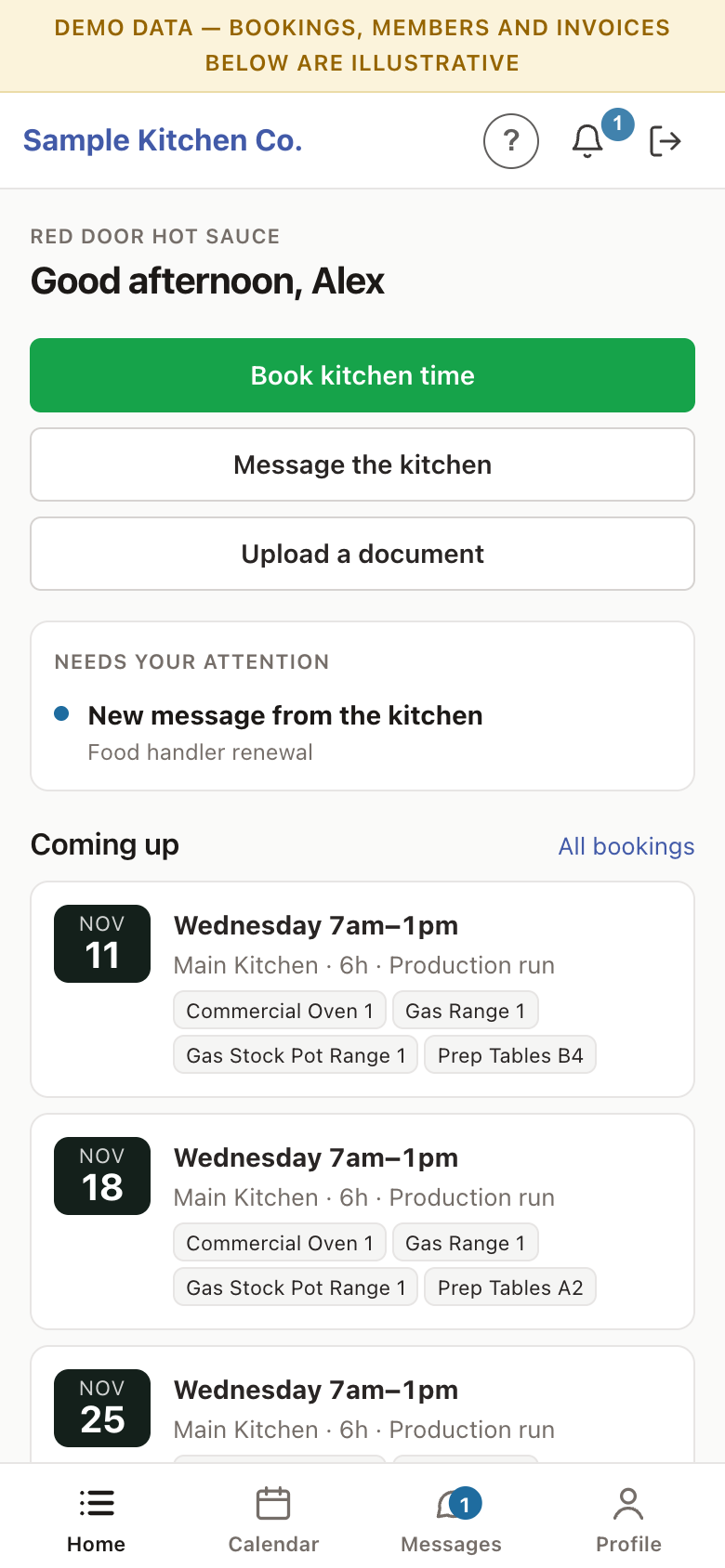
Members book from the kitchen floor, between batches. On a phone the app has its own home screen — what's next, what needs them, one tap to book — and installs to the home screen like any other app.
  • Phone-first, with the floor plan full screen
  • Their bookings, messages, documents and bills in one place
A member's home screen on a phone: buttons to book kitchen time, message the kitchen and upload a document, a new message waiting, and their next bookings with the equipment for each.
03

Members — and the paperwork that keeps them cooking

Every member's status, door code, which locations they can use, their rates and their documents, on one record. Set the documents each type of client must keep current — a food manager certificate, permits, liability insurance — and KitchenSlate tracks the expiry dates, reads them straight off uploaded PDF certificates, and holds new uploads for staff to review before they count.
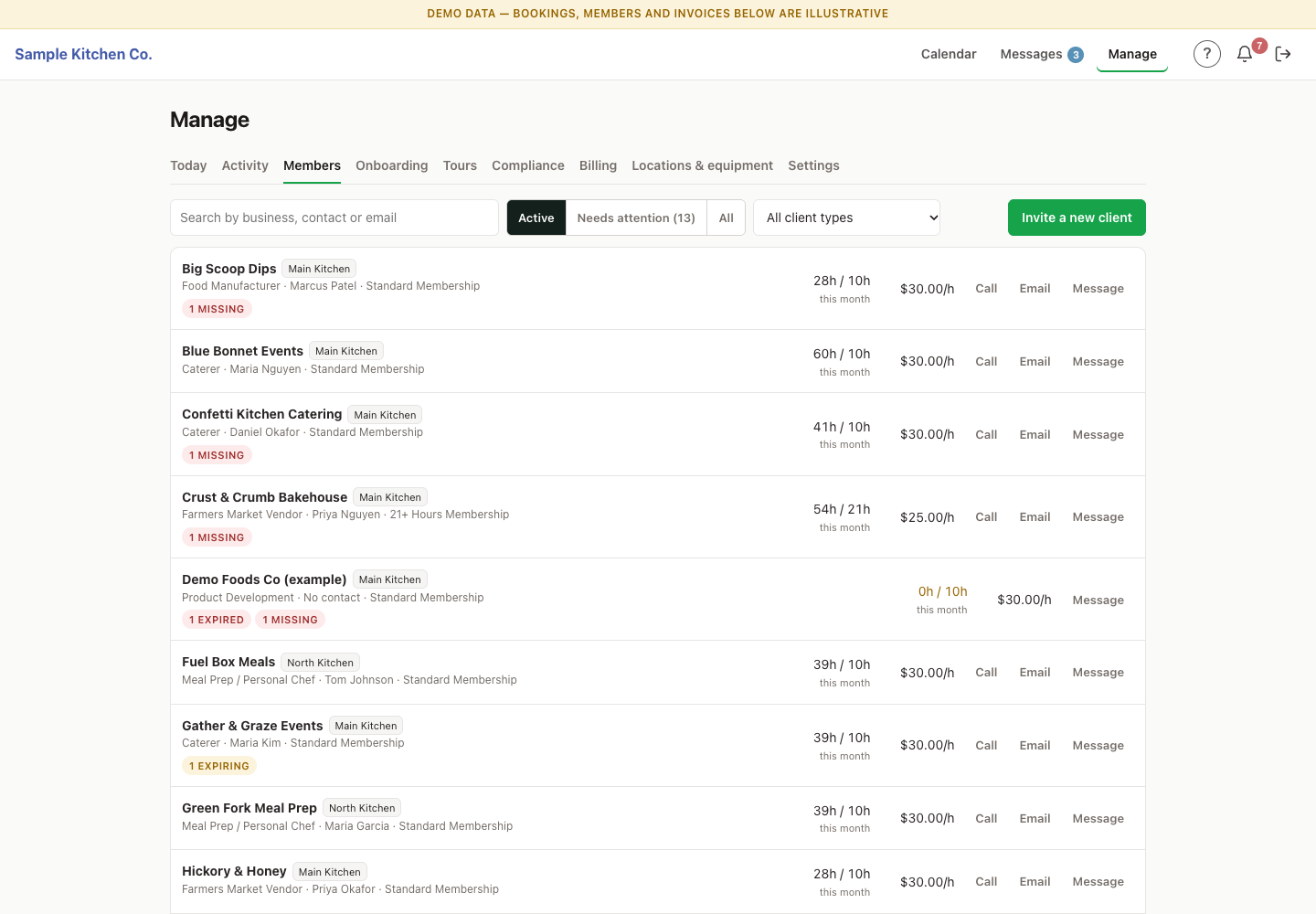
The member list: each business with its kitchen, client type, contact and plan, hours booked against its monthly minimum, its rate, badges for expired or missing documents, and call, email and message on every row.
Nobody cooks on a lapsed certificate.

Each member sees exactly what their kind of business must keep on file, and uploads renewals from their phone. Expired and missing documents are flagged on the member's row and on the manager's Today screen. Status decides what a member can do — a suspended member keeps their portal but loses the calendar.

  • Required documents per client type
  • Expiry dates read from the PDF, checked by staff
  • A door code and location access per member

It deliberately won't keep tax forms: a W-9 uploaded by mistake is turned away, because it carries a taxpayer ID the kitchen shouldn't be storing. Door codes are entered on the keypad by hand; KitchenSlate doesn't drive the lock.
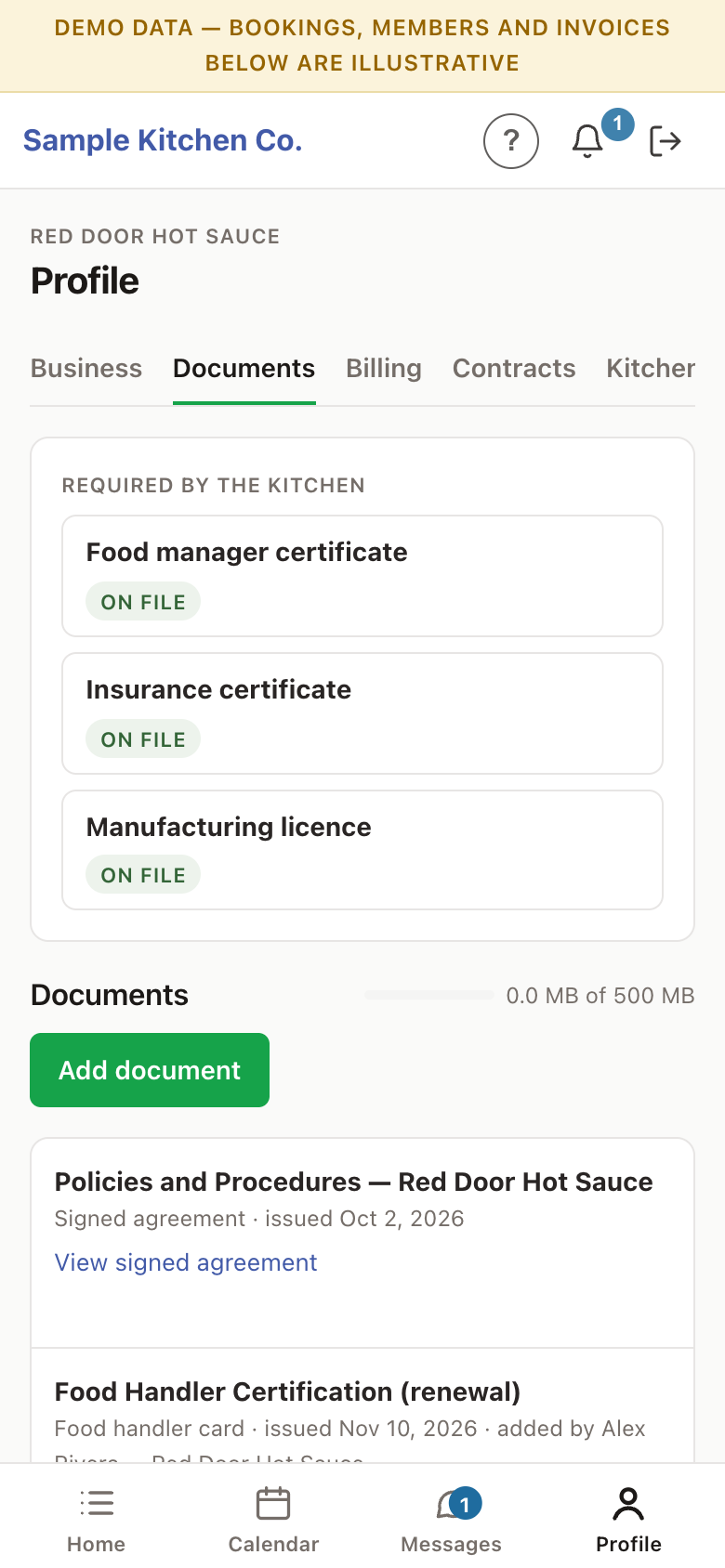
A member's documents on a phone: the certificates the kitchen requires, each marked on file, an Add document button, their signed agreement, and a renewed certificate awaiting staff review.
04

Onboarding — from enquiry to first booking

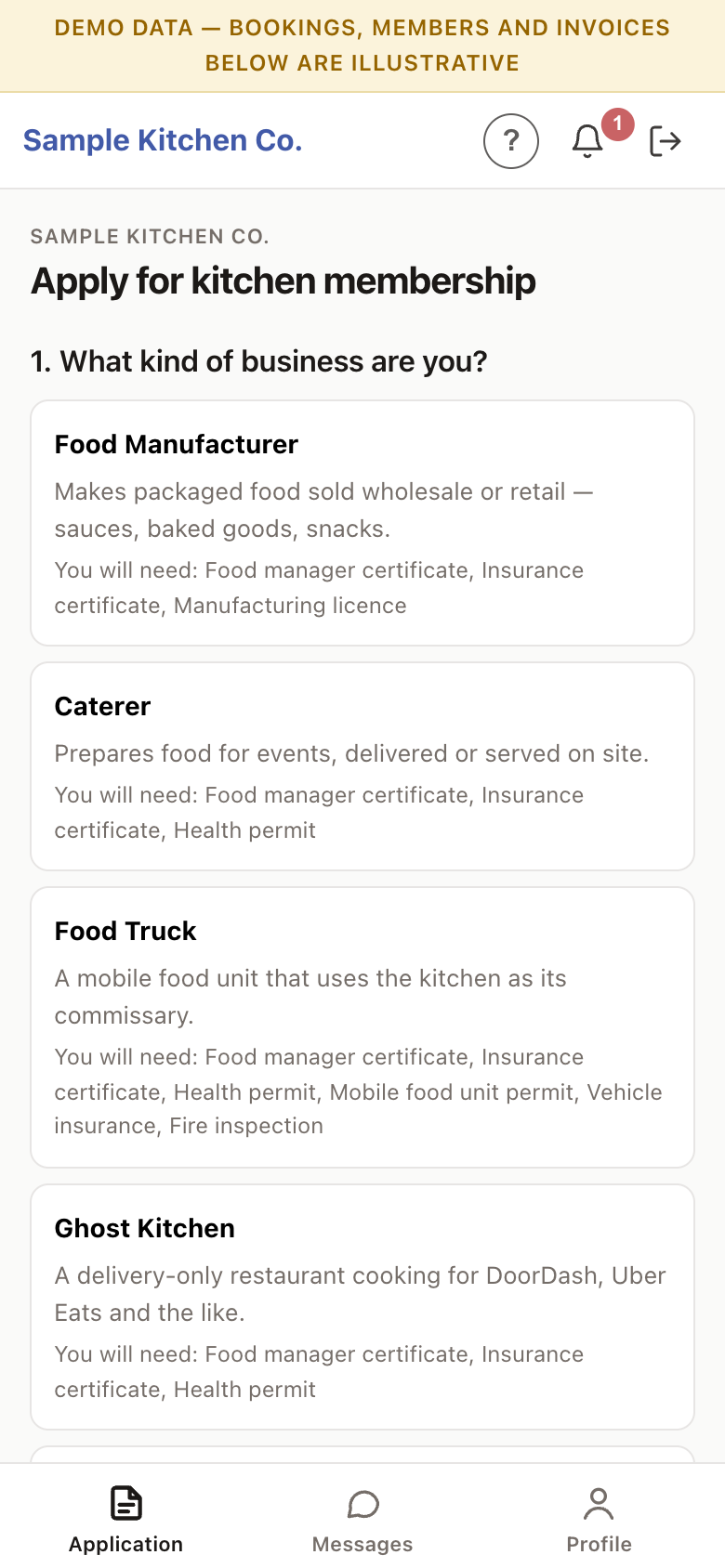
Send an invite or take an application from your website. The applicant picks what kind of business they are and sees straight away which documents they'll need, answers your own questions and uploads their paperwork. You review it on one page, approve it, send the agreements, and activate the member once they've signed.
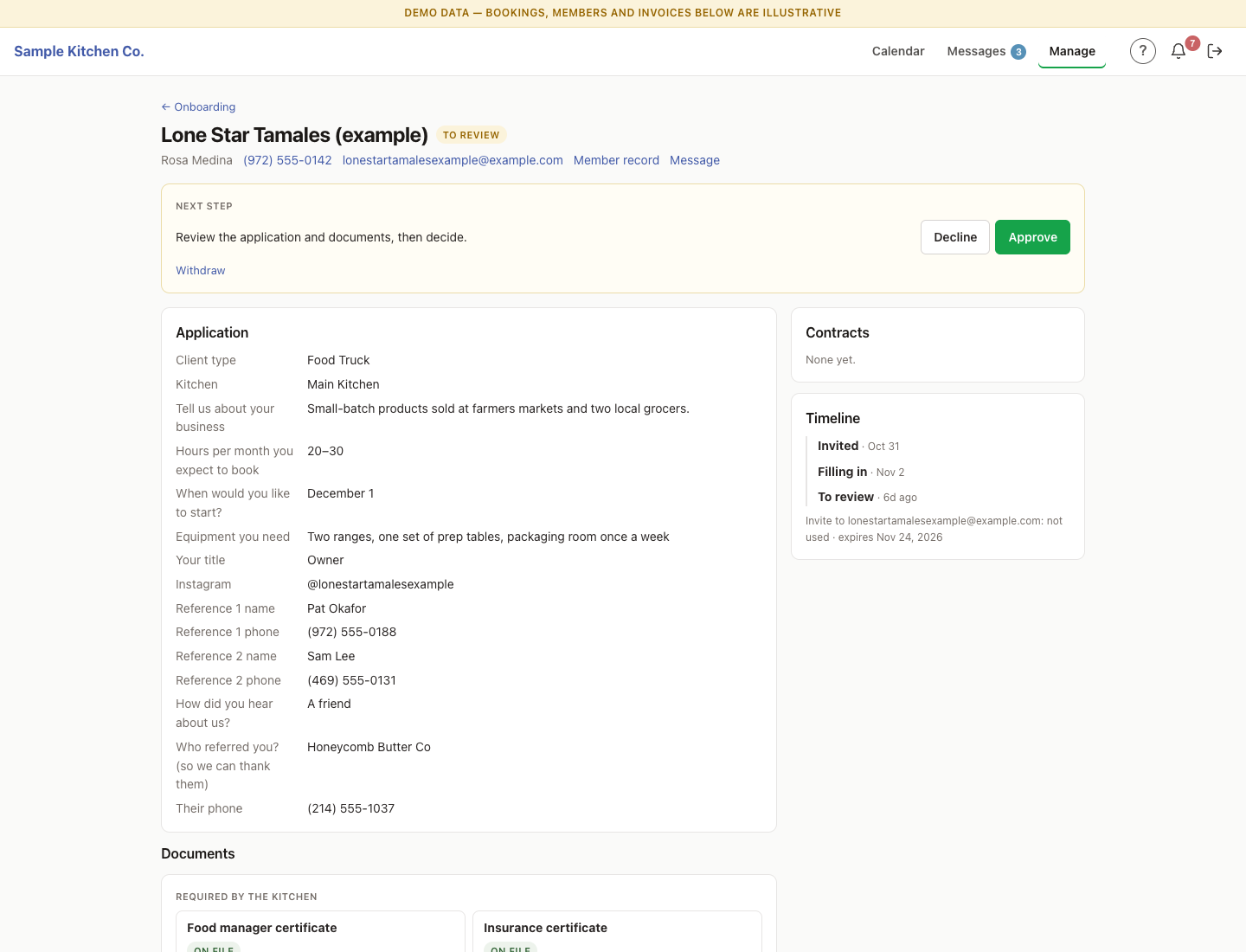
One application under review: the business's answers to the kitchen's questions, its client type and requested kitchen, a timeline from invited to to-review, its documents, and Approve and Decline buttons.
The application on an applicant's phone: the first question asks what kind of business they are, and each choice lists the documents that kind of business will need.
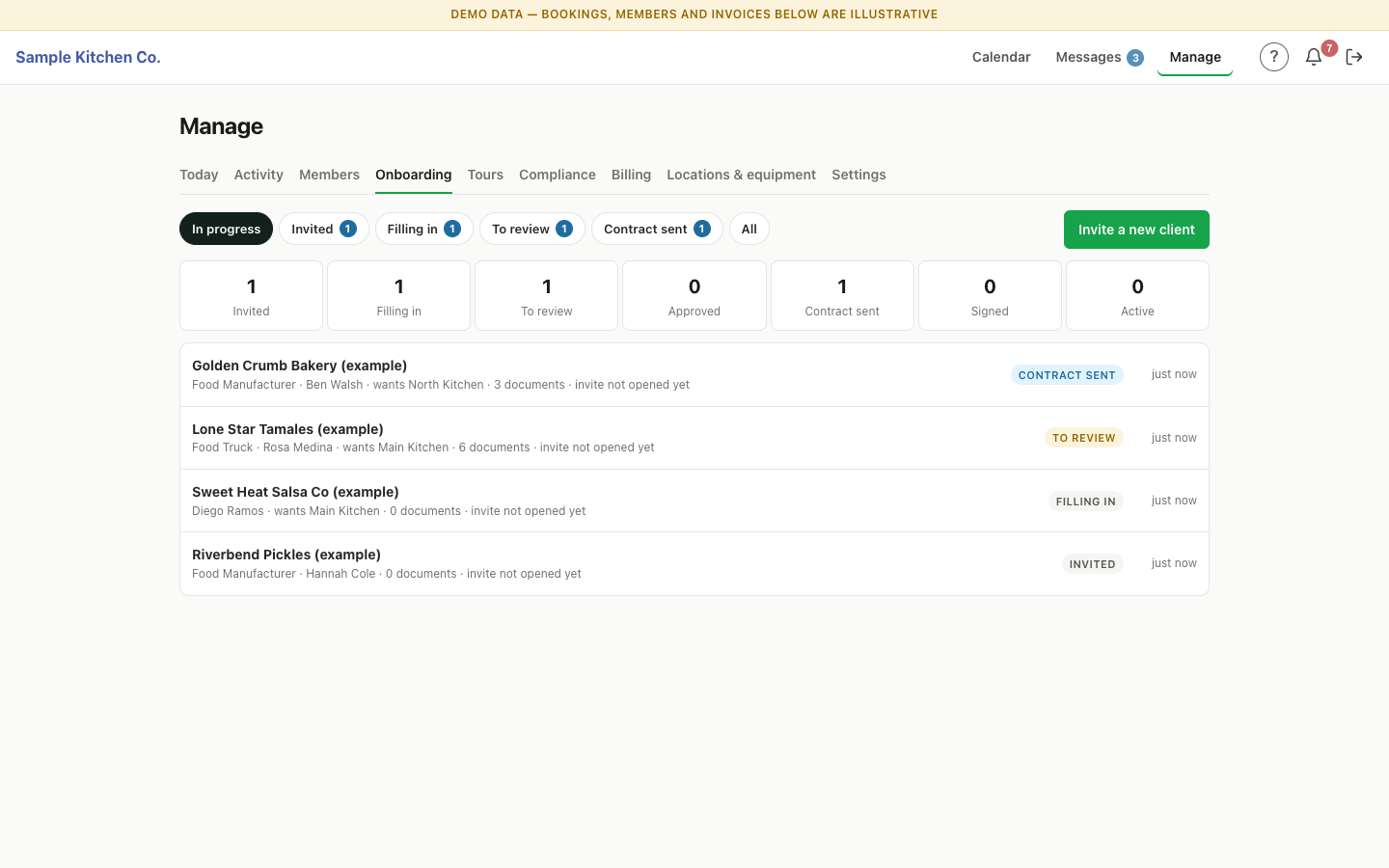
The onboarding screen: counts of applicants at each stage from invited to active, and a list of applicants with their business type, the kitchen they want, how many documents they've uploaded and their stage.
Every applicant's stage on one screen, from invited to signed.
05

Agreements and policies — signed in the app, kept on the record

Paste in your own lease and house policies once, with blanks the app fills in for each member — their business, plan, rate, start date, and any blanks of your own, like a landlord's name or a late fee. Members sign on their phone; the signed copy is frozen and filed with their documents.
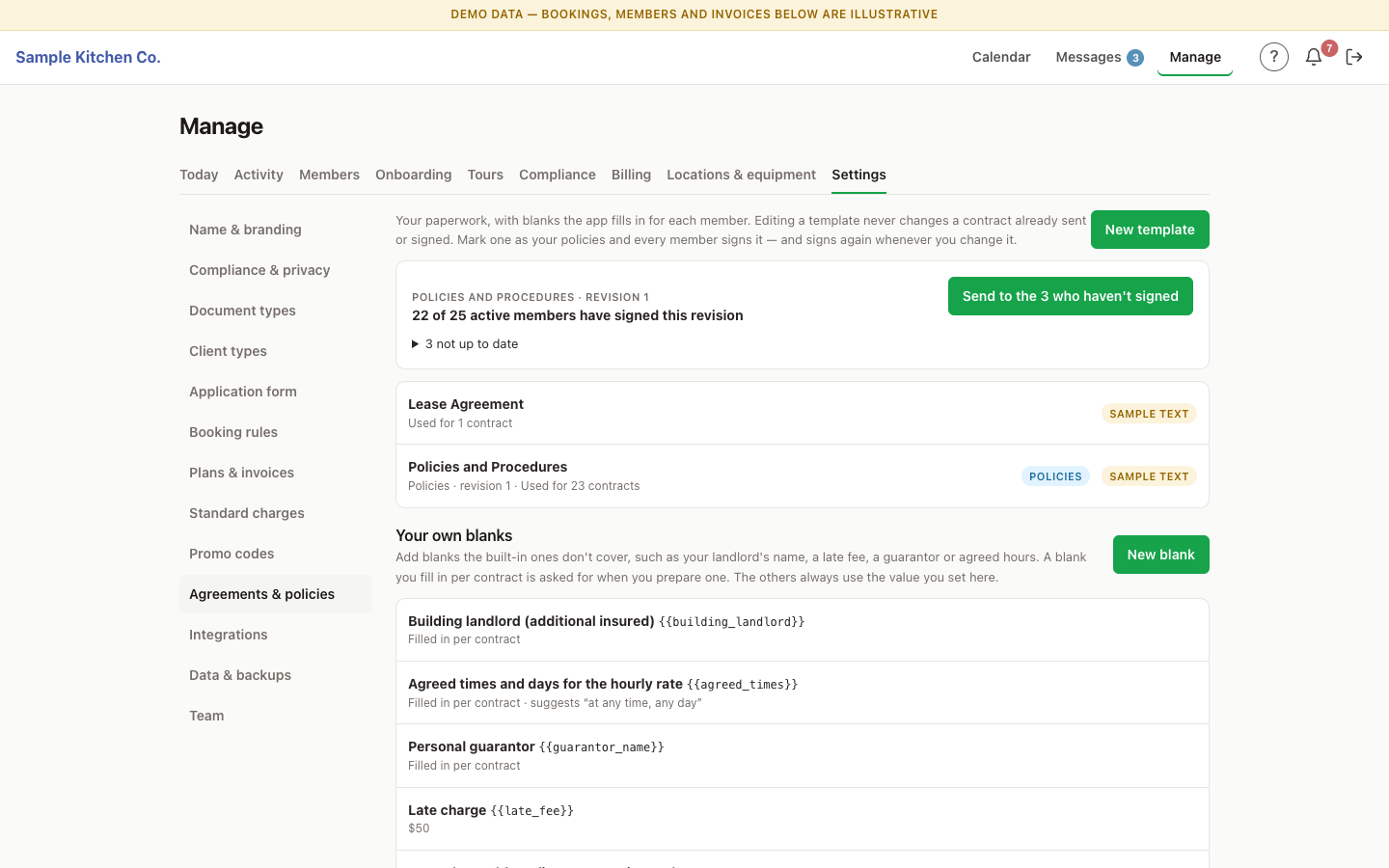
Agreements and policies in settings: a banner saying 22 of 25 active members have signed the current policies with a button to send them to the 3 who haven't, the kitchen's two templates, and its own fill-in blanks such as the building landlord, a late charge and a personal guarantor.
Change a policy, and everyone signs again.

Mark one template as your policies and every member signs it. Edit it and that's a new revision: KitchenSlate shows who's signed the current one and sends it to the rest in one go. A contract already sent or signed never changes when a template does.

  • Your own wording, your own blanks
  • E-signature, with the signed copy filed
  • Who's signed which revision, at a glance
06

Today — what needs you, before it becomes a problem

One screen for the kitchen manager: equipment double-booked, a room over occupancy, bookings that clash with a closure, documents expired or missing, uploads to review, unread messages, reminders due and applicants waiting. Members message the office from inside the app, so the thread stays on their record.
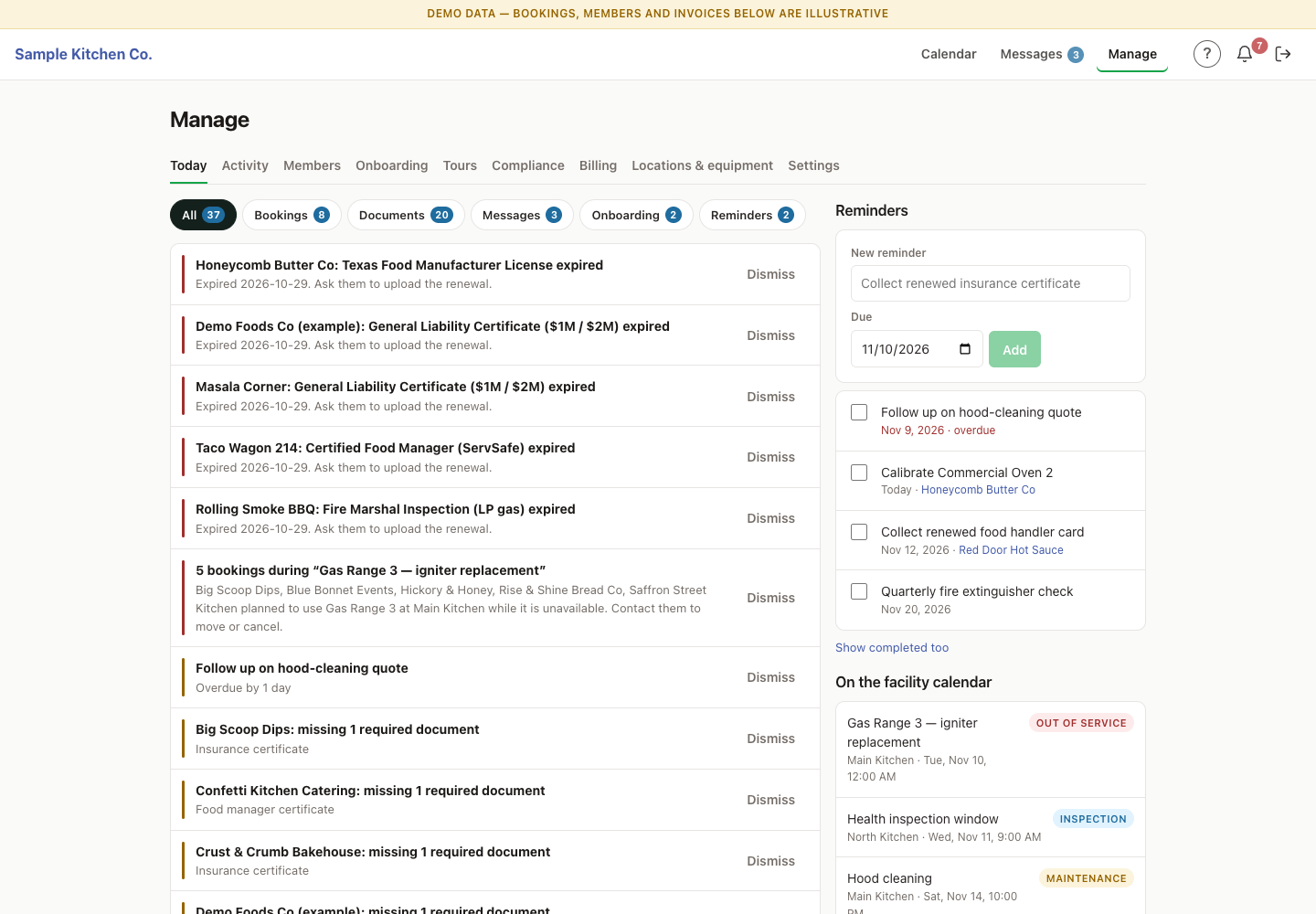
The Today screen: filters for bookings, documents, messages, onboarding and reminders with counts, a list of expired documents and bookings caught by an out-of-service range, and a reminders column on the right.
The morning walk-through, on one screen.

Every alert links to where you fix it. Rules that matter are enforced by the system rather than remembered by staff — so equipment going out of service raises an alert for the bookings it affects instead of quietly cancelling someone's day.

  • Alerts worked out live, across every location
  • Messages and reminders on each member's record
07

Billing — paid when they book, squared up at month end

Members pay for hours as they book them, through your own Stripe account, with a refund window you set. Plans carry minimum hours and volume tiers, and members are nudged when a bigger plan would save them money. At month end, one step closes the month for everyone — minimum-hour top-ups, storage rentals and one-off charges invoiced in a single pass.
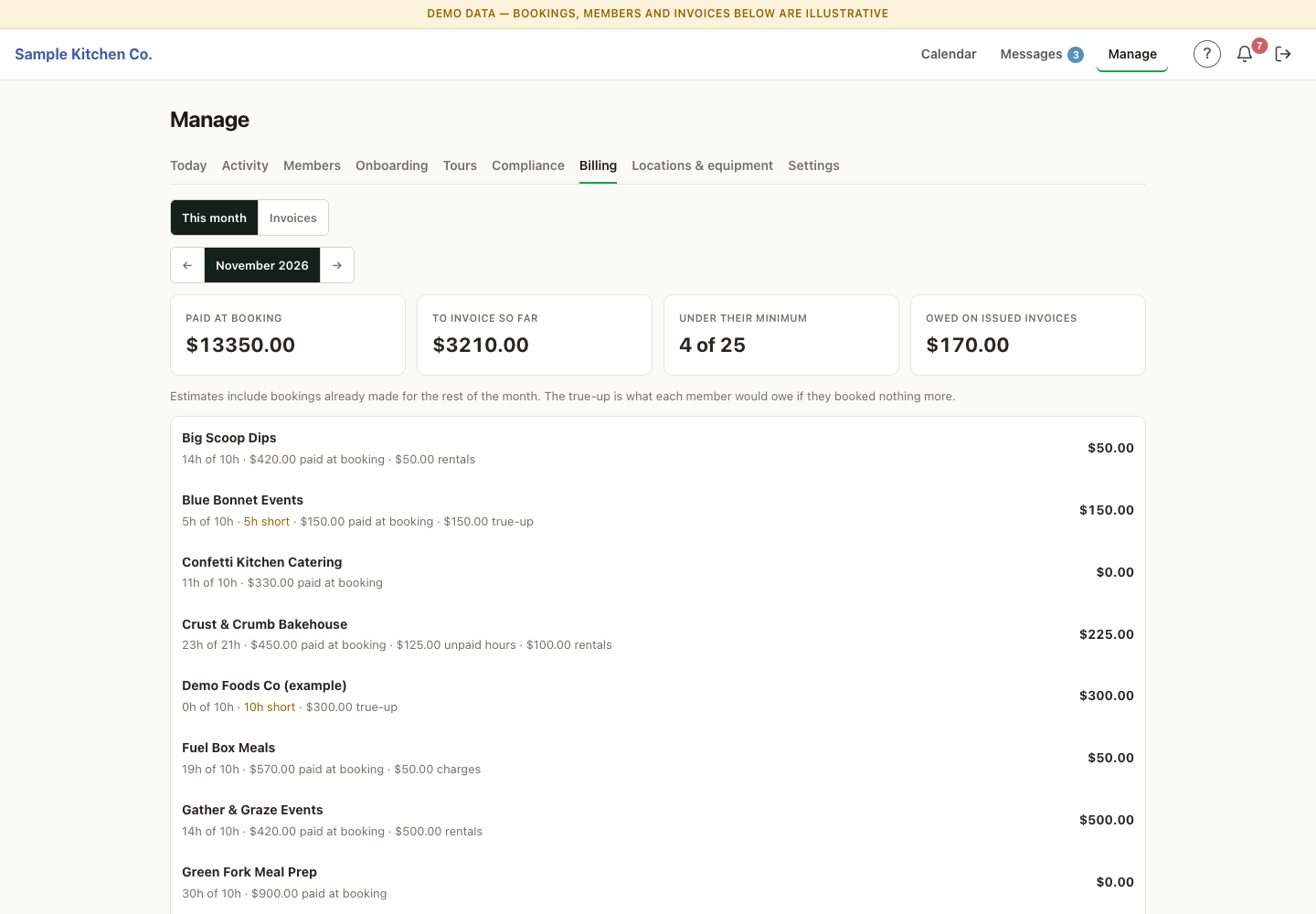
The month's billing: totals paid at booking, to invoice so far, members under their minimum and owed on issued invoices, then each member's hours against their minimum with what they've paid and any true-up, rentals or charges due.
The money goes straight to you.

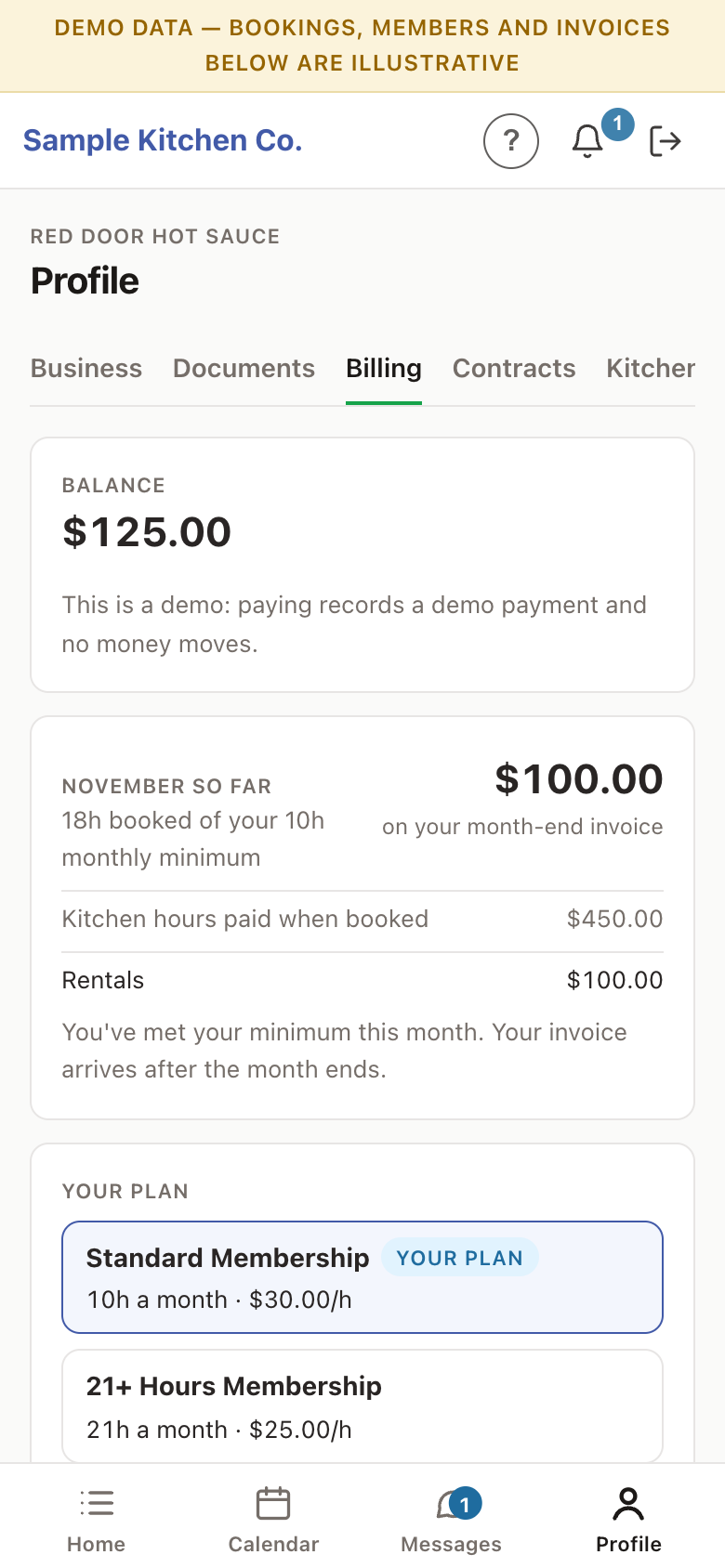
Payments land in the kitchen's own Stripe account. Each booking keeps the rate it was made at, so changing a price tomorrow never rewrites last month. A negotiated rate lives on the member's record, not in a coupon code that can be passed around. Members see what they've paid and what's coming on their phone.
  • Minimum-hours plans with volume tiers
  • Negotiated rates per member, and promo codes
  • Your price list for cleaning fees, late fees and the like
  • Storage and office rentals invoiced monthly
A member's billing on a phone: their balance, this month so far with hours booked against their minimum, what was paid at booking and rentals, and the plans they could move to.
08

Tours and your website — the front door, connected

Prospective members pick a tour time from your website, and the tour lands in KitchenSlate on its own calendar — no separate booking tool. A WordPress plugin adds optional blocks to your own pages, in your own design: use any of them, or none.
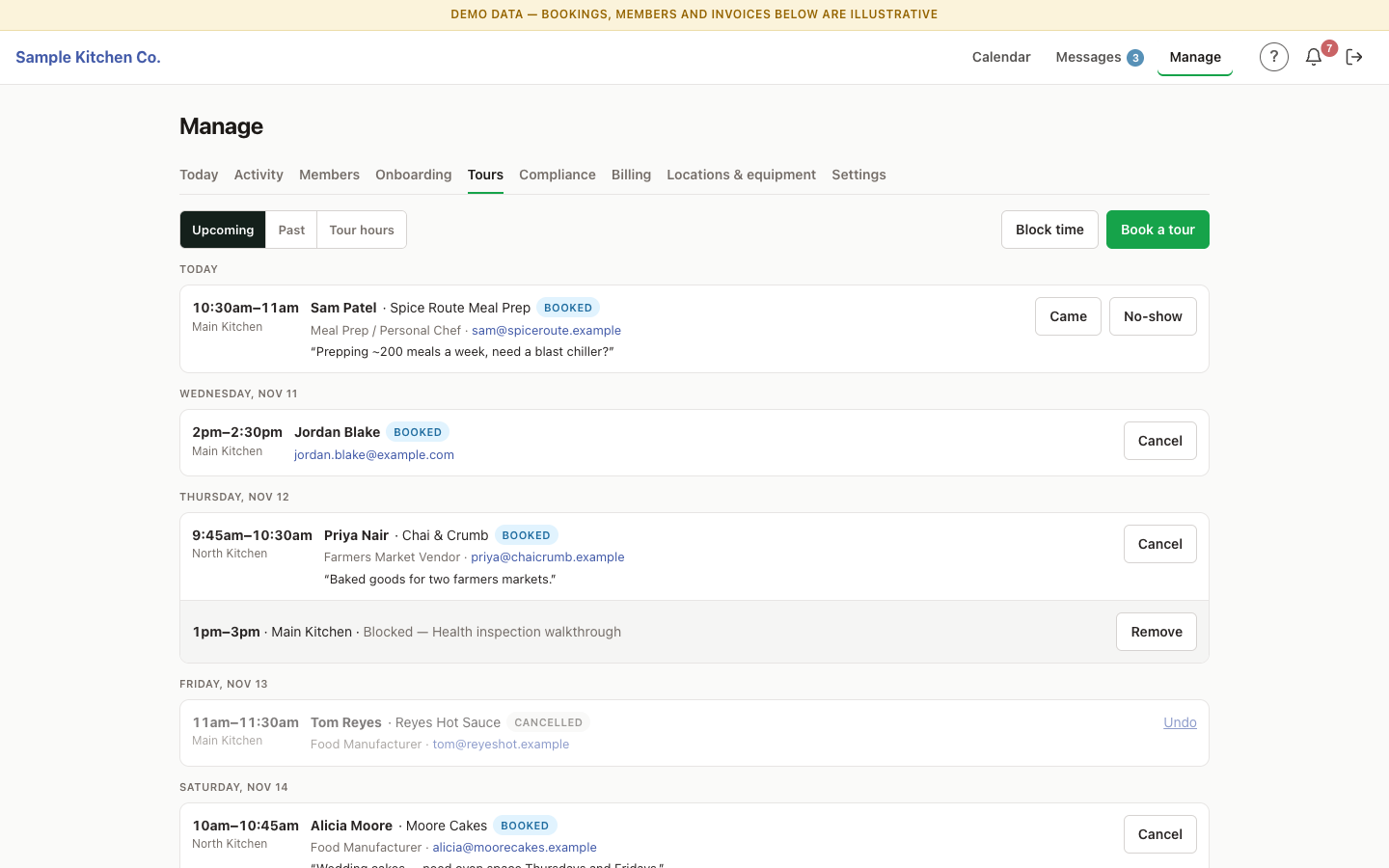
Upcoming tours by day: each visitor's name, business, type and email, the kitchen and time, a note they left when booking, a blocked-out slot, and a cancelled tour that can be undone.
Tours booked from the website, on their own calendar — with what each visitor told you when they booked.
Application form

Lands in Onboarding, ready to review.

Tour booking

Visitors pick a free slot on the tours calendar.

Open hours

How busy each kitchen is, hour by hour — never who's booked.

Member login

One button from your site into the app.

09

Set up the way you run — by you, in the app

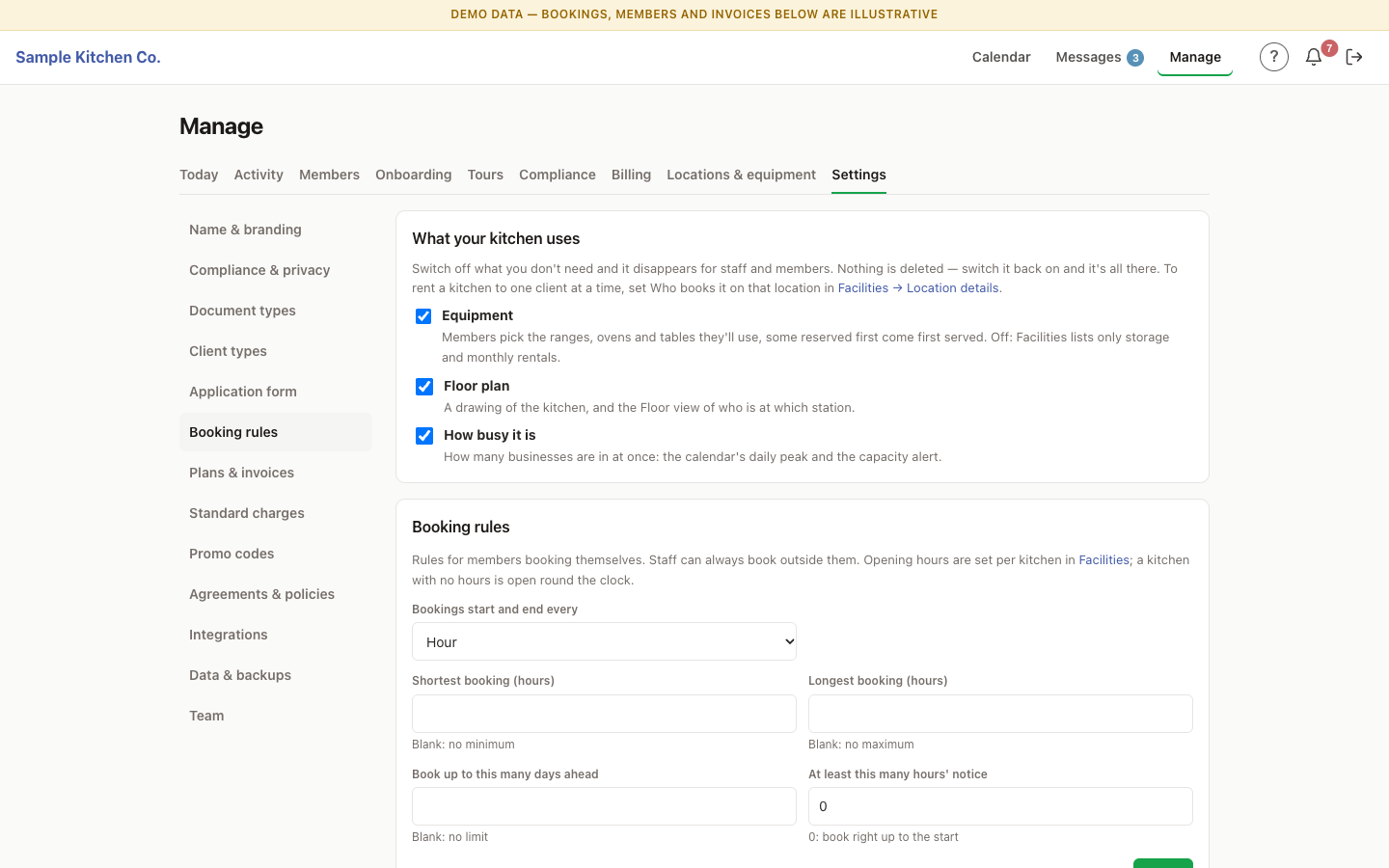
Everything a kitchen decides is a setting the owner changes on a screen, not a request to a developer: your name and colours, locations and equipment, which equipment is reserved, booking rules, plans and invoice terms, standard charges, promo codes, the documents you collect, the questions your application asks and the agreements members sign. Don't use the floor plan, or don't track equipment at all? Switch it off and it's gone from every screen.
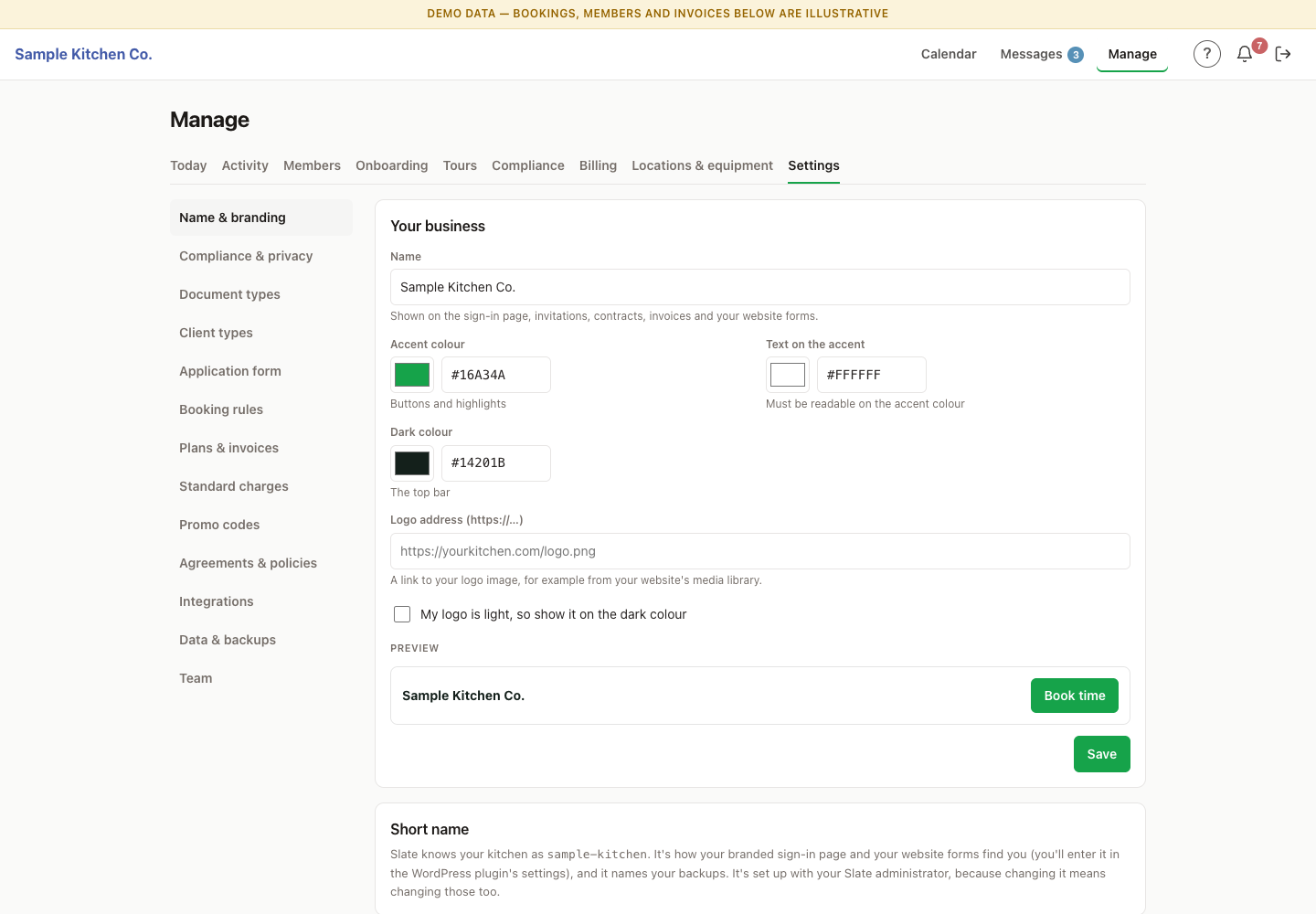
Name and branding settings: the kitchen's name, accent colour, text colour and dark colour, a logo address, and a live preview of the top bar.
Your name, logo and colours — on the app, invitations, contracts and invoices.
Booking rules: switches for equipment, the floor plan and occupancy, then the booking step, shortest and longest booking, how far ahead members can book, and how much notice they must give.
Booking rules, and switches for the parts you don't need.
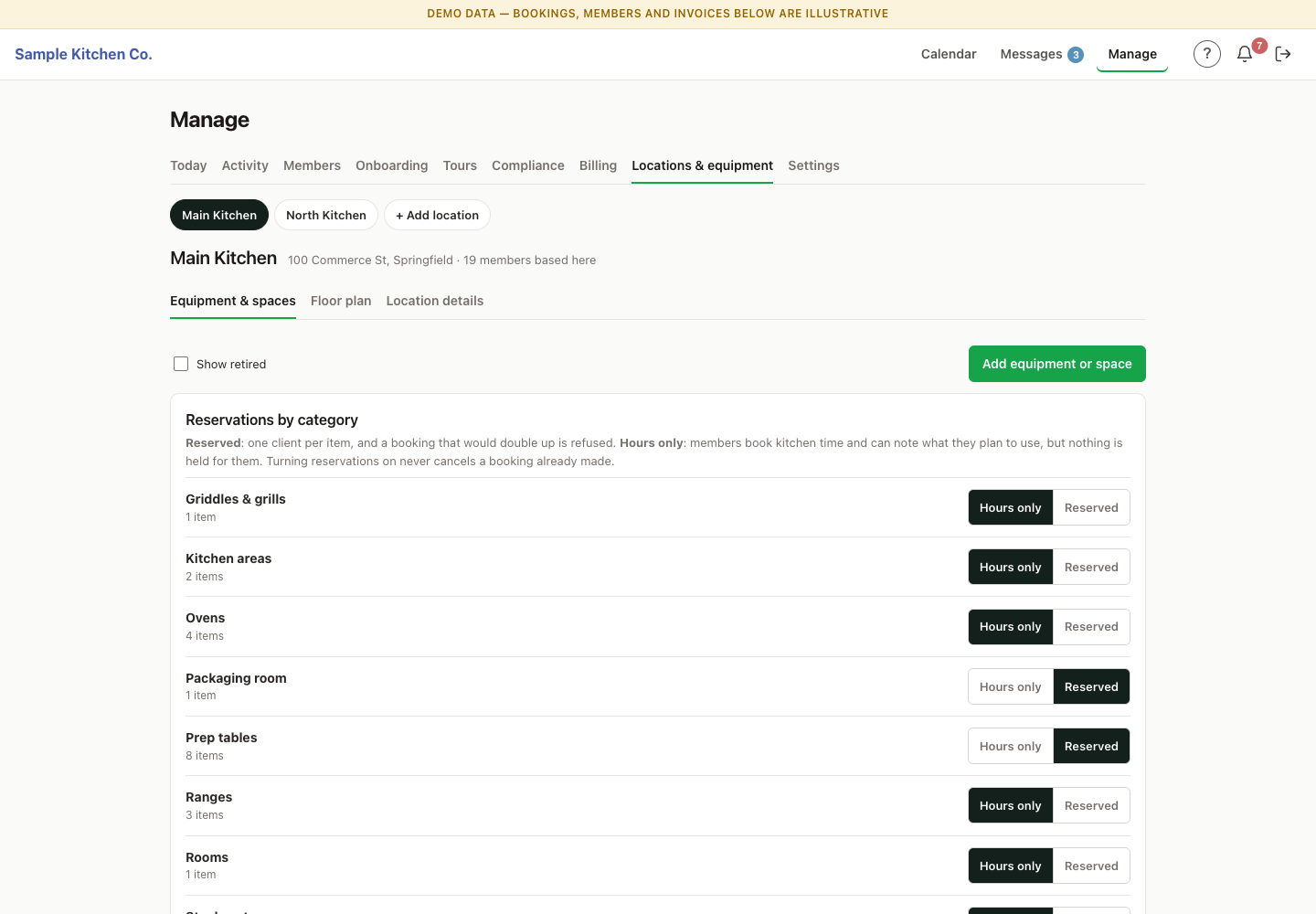
Locations and equipment: the kitchen's two locations, and reservations by category, each switched between hours only and reserved.
Per category: shared by the hour, or reserved one business at a time.
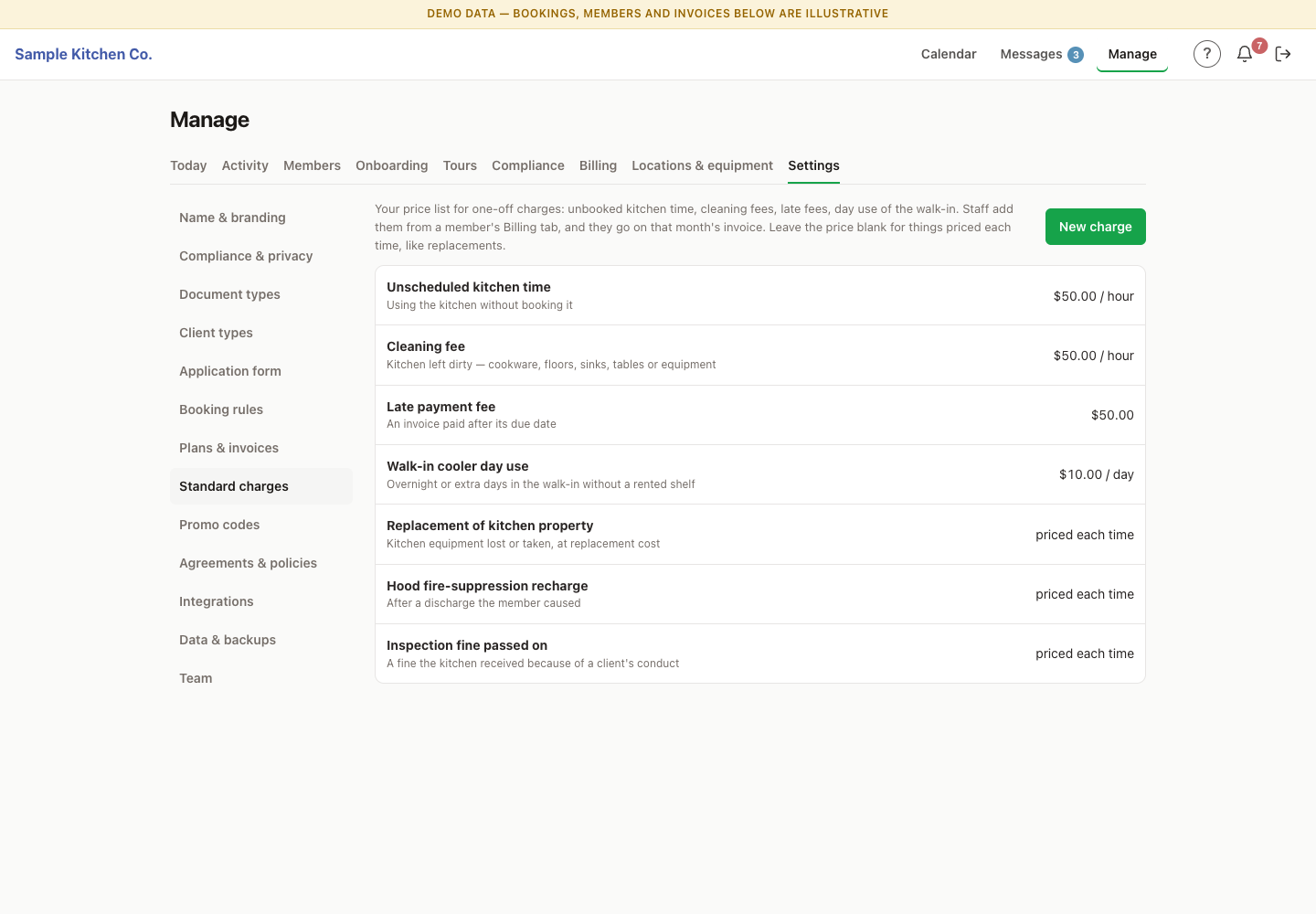
Standard charges: a price list of one-off charges such as unscheduled kitchen time, a cleaning fee, a late payment fee and walk-in day use, some priced each time.
Your price list for one-off charges, added to the month's invoice.
10

Your data is yours — and you can prove the backup works

The owner downloads a complete backup from the app — every record, every setting — and a second download with every uploaded document, filed by member. One button test-restores a backup and checks every table against it, without touching live data, so you know it works before you need it. Members, equipment, plans and the rest export to spreadsheets, and come back in the same way.
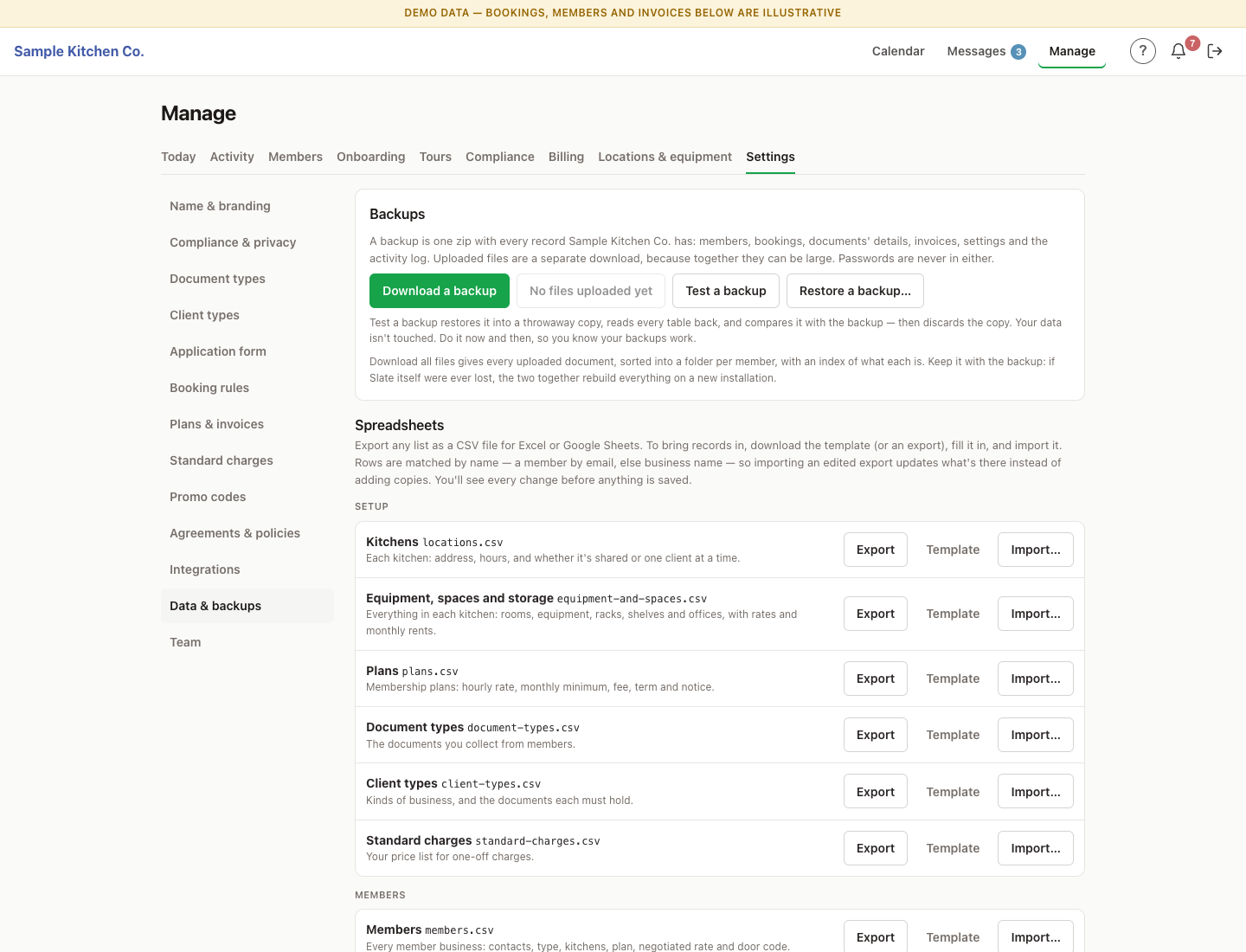
Data and backups: buttons to download a backup, download all files, test a backup and restore one, then a list of spreadsheets — kitchens, equipment, plans, document types and more — each with export, template and import.
Moving in is a spreadsheet, not a project.

Bring your members, equipment and plans across by filling in a template or editing an export. An import shows you every change before anything is saved, and matches what's already there instead of adding copies.

  • Full backup and file download, any time
  • Test-restore that checks every table
  • CSV export, templates and import with a preview
11

Built so the kitchen stays in control

A booking system holds your members' details and your income. Here's how that's handled — in how it works, not just in the fine print.

Every change logged, with undo

An activity log of who changed what — and a way back when someone gets it wrong.

Your kitchen's data, walled off

Each kitchen's records are kept separate by the database itself, not just by the screens.

Your own Stripe account

Members pay you directly; we never sit between you and your money.

Try it without risk

A demo mode full of made-up businesses, so staff can learn it before a real member is on it.

See it with your kitchen

Your name, your logo, your colour.

Every screen carries the kitchen's own brand — your members see your kitchen, not ours. It's set up around how you actually run: your locations and floor plans, which equipment is shared, your plans, your paperwork and your rules.

Tell us about your kitchen.

A demo login, pricing, or just a question — tell us how many locations and members you run.

Email hello@kitchenslate.app

KitchenSlate — booking and members for shared kitchens.